

 Freedom Index
Listen to the article
Apple’s new operating system is here, and along with it comes a new version of Siri, dubbed with two very familiar letters: AI. As the name suggests, this Siri power-up resembles an AI chatbot more than the often derided voice assistant you might be used to. It has even evolved from a blob you invoke with a verbal command or a button press to a whole app. This update comes with a slew of privacy complications, but you can take some control over what this new Siri can access and use.
There’s no denying that the new version of Siri is far more powerful than it used to be, and arguably more useful at surfacing details on your phone. But that comes at the cost of deeper access. Once enabled, Siri and Spotlight are combined, unifying the interface. Where you may have once just pulled down on the screen to search for an app or contact, you’re now also invoking Siri.
Spotlight and Siri are now visually one and the same.
By default, ask Siri a question and it’ll search through your Apple apps, like Notes, Messages, emails, and more. As time goes on, if the developer chooses to let it, Siri will gain access to more and more third-party apps. If an app developer doesn’t add that support, then Siri AI won’t be able to access the contents of that app (unless it’s shared screenshot-style via a new feature called “on-screen awareness,” which we’ll talk about more in a moment).
For example, if Signal doesn’t choose to implement Siri AI support and you only talk to Bill on Signal, you won’t get an answer when you ask Siri AI, “What was the last photo Bill sent me?” But if you talk to Bill on Apple Messages and ask that same question, Siri AI will summarize what it thinks the photo is.
Sometimes Siri processes this data on your device. Sometimes it uses Apple’s Private Cloud Compute (PCC), which means the data is sent off your device to a cloud server. While you can try digging through the Apple Intelligence Report to figure out what’s sent to PCC, there’s no immediate visual indication from the user’s point of view when data leaves the device or when AI can handle it on the phone, iPad, or Mac itself. In practice, ask Siri AI a question and you’ll never really know if it’s being computed on device or off.
Apple claims what’s sent to PCC is not stored by the company after it is processed, but there are certain types of data or certain apps you might have on your phone that are not worth the risk. That’s especially true if you’re using a feature like Advanced Data Protection, which turns on end-to-end encryption for much of what’s stored in iCloud. Sending data that’s stored with end-to-end encryption off your device and into the cloud—no matter the privacy promises—is a fundamental change to the risk assessment you should make. “Private” means the system is engineered so that Apple shouldn’t be able to see or store the data, but it doesn’t mean it’s encrypted or doesn’t leave the device.
This leaves the privacy of certain apps up to a strange combination of an app developer’s choices and your own. You can, of course, disable Siri entirely (Settings > Siri > “Turn Off Siri“), or choose not to invoke Siri to ask questions, but perhaps you don’t want to fully disable or disengage with the system. Thankfully, you can put some guardrails on Siri AI’s access. Once you’ve updated to iOS 27, here are the steps to take.
Note: only iPhone 15 Pro/Pro Max, as well as all models of the iPhone 16 and newer support Apple’s AI features. Siri AI is currently only available in English, and not available worldwide.
How to Restrict Siri’s Access to the Content Inside Apps
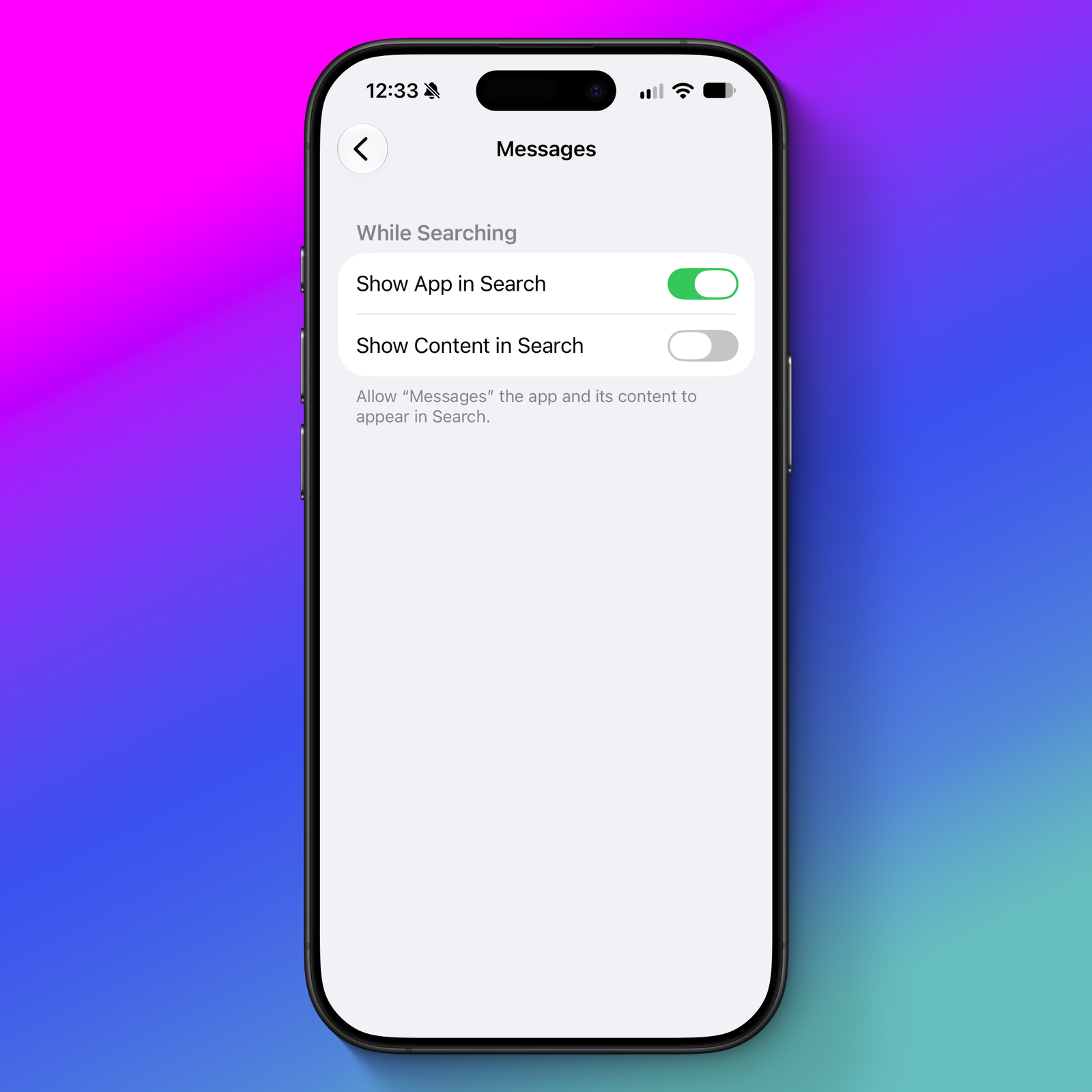
By default, how (and if) Siri AI can access data inside apps is up to the app developer. If an app developer chooses to index the contents of their app, then it may appear in search, and thus be made available to Siri AI. This means the content may pop up during general or direct searches, like “What are my plans for November” might cull information from your calendar, Messages, Notes, and, as they update, third-party apps.
If you do not want Siri to look through certain apps to consider the contents in results, you can tell it not to:
- Open Settings > Apps > [the app you don’t want Siri to look through] > Search
- Disable the option to “Show Content in Search.”
With this setting disabled, when you ask Siri general questions, it will not surface details from the app you selected. For example, if you disable “Show Content in Search” for Messages, it will not be able to read your Messages conversations.
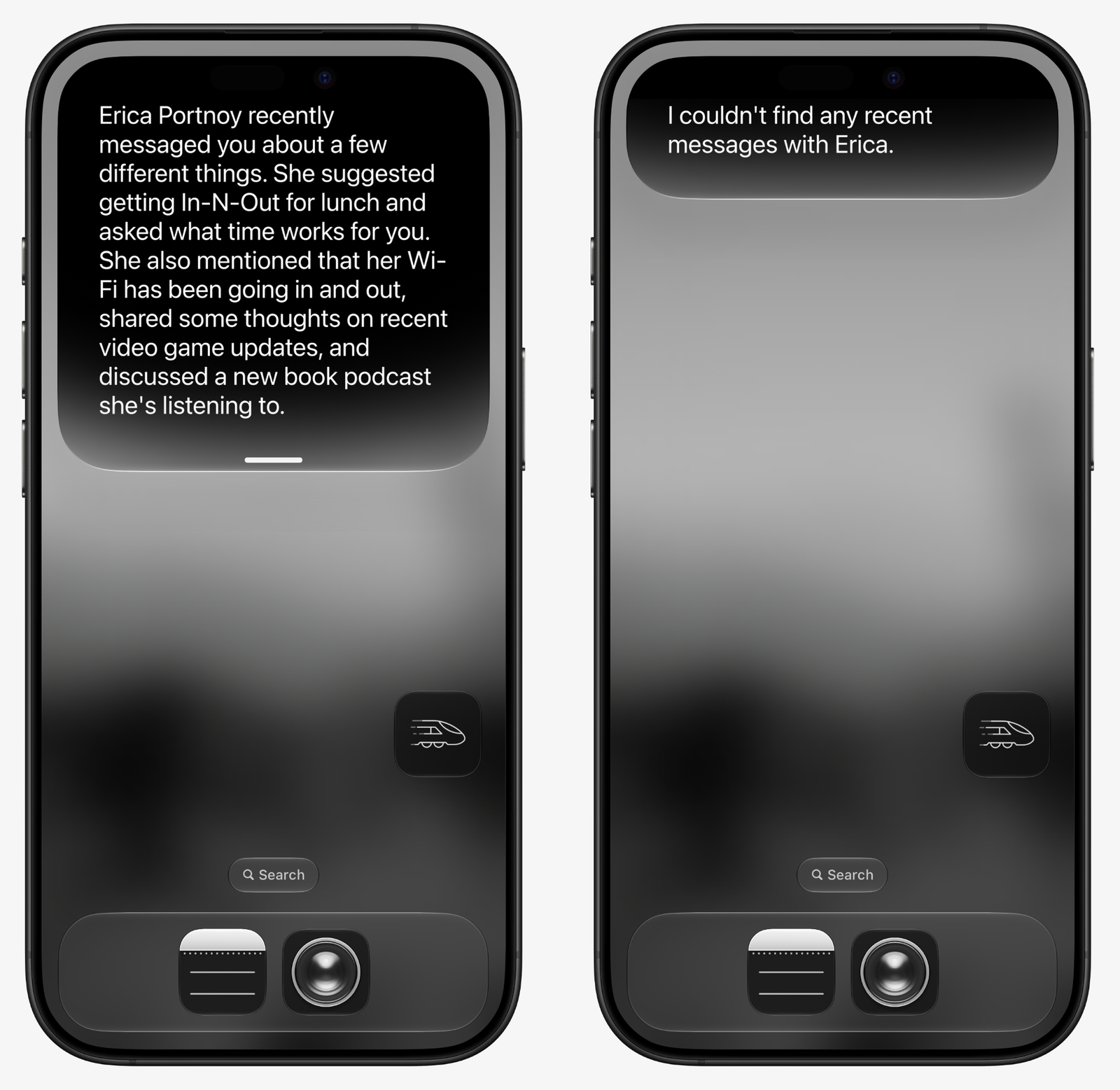
Left: Asking Siri to summarize a message thread with Show Content in Search enabled. Right: With the setting disabled.
There is also an “App Access” setting where you can configure some of the ways Siri interacts with apps. You’d think this is where we’d have gone to revoke access to the content of an app, but alas, this settings page is more about some basic functionality with device personalization, not Siri’s access to the contents of the app.
- Open Settings > Siri > App Access
- Tap an app where you’d like to change Siri’s settings.
On this screen, you’ll find a variety of options, depending on what an app supports. “Learn from this App” sounds nefarious, but is mostly about tracking usage, like how often you open an app, and if a developer supports it, what you interact with.
The rest of the options are mostly about the personalization tweaks that Siri makes, where it suggests apps it thinks you want at the moment in various places, like when searching or sharing. “Show on Home Screen,” “Suggest App,” and “Suggest Notifications” are just about whether you see apps in those places.
For example, if you have a widget of Siri-suggested apps on the home screen, that’s the “Show on Home Screen” toggle. If you see an app recommended in another app, like adding a date to your calendar from an email, that’s “Suggest App.” Apple claims these features all use on-device processing and the data is not stored on servers.
For anything not covered here, refer to this documentation for steps to disable certain features.
The On-Screen Awareness Capability May Be Concerning for Some People
There is one Siri AI feature you (and app developers) can’t do as much about: on-screen awareness, a feature you can invoke at any point to prompt Siri and ask it to explain what you’re looking at and perform certain actions. For example, you can ask it to summarize a web page, cut a recipe you’re reading in half, add an event to your calendar, or try to figure out where a photo was taken. All potentially useful features.
But you can also ask it to summarize or explain a Signal group chat that you’re looking at, or a meme in a WhatsApp chat, and the data from that on-screen interaction may be sent to PCC. There is currently no way for you or app developers to block this feature, so it’s up to you, and those you chat with, to simply not use it if you’re concerned about the content of conversations potentially leaving your device. It would be a large improvement to privacy, especially secure chat apps, if Apple provided developers a means to block access to Siri AI’s on-screen awareness tool. Even better if they gave you a single control to block all Siri AI features from an app entirely.
Revoke Access to Training Data
By default, Siri AI won’t collect and use data from your interactions with it for training AI features. But during the setup process, Apple provides a way to opt in, which you might have tapped without thinking about it. If you’d rather your data not get used for training, you can opt out:
- Open Settings > Privacy & Security > Analytics & Improvements
- Disable the option for “Improve Siri & Dictation.”
According to Apple’s privacy documentation, disabling this option should revoke training access to the audio and text from the Siri app.
Go Back to the Old Version of Siri (and Disable Other AI Features)
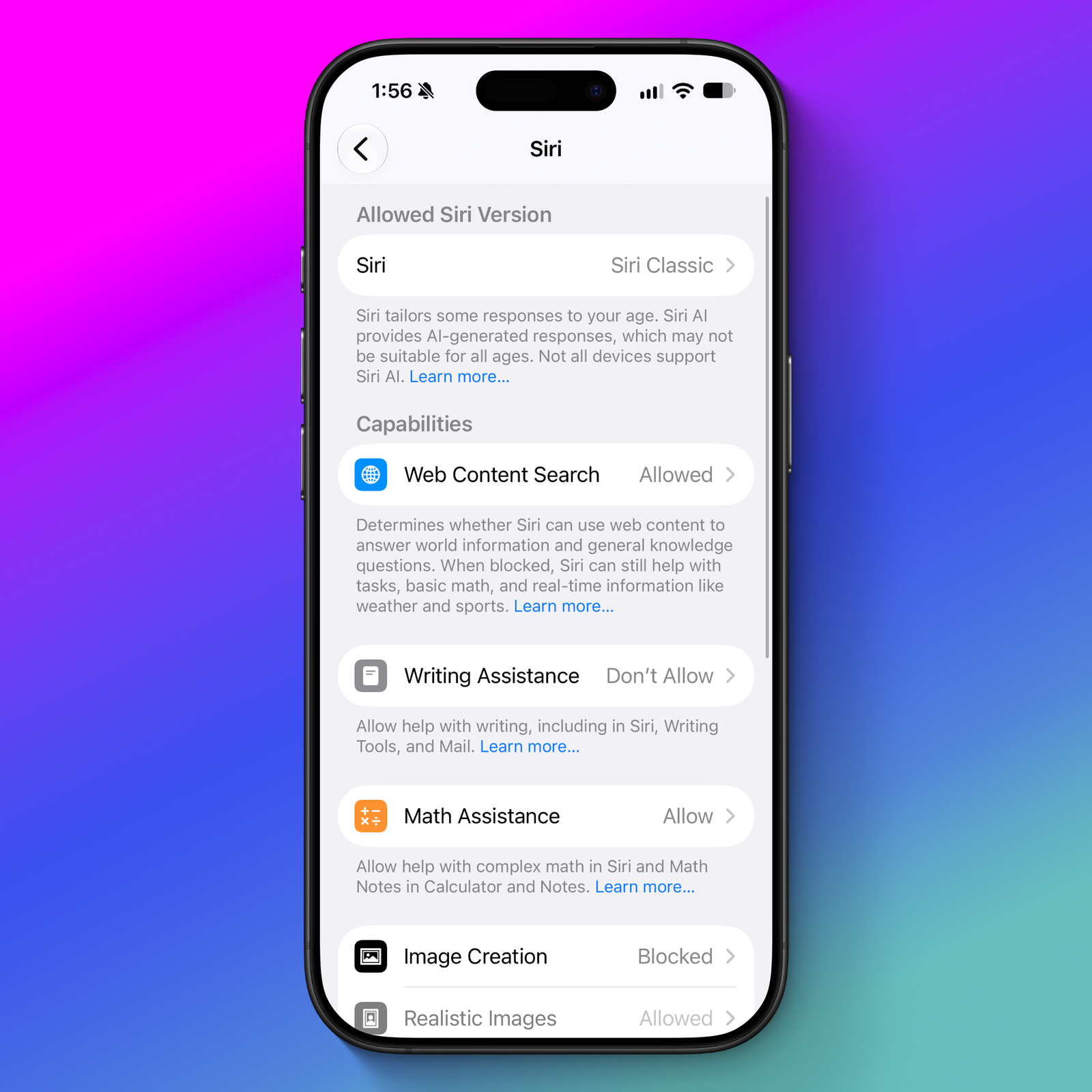
Want nothing to do with any of this but still find Siri useful enough to keep around (or you just have to keep it turned on in order to use CarPlay)? For the time being, you can get the old Siri back, though the process is a bit odd.
- Open up Settings > Screen Time > Content & Privacy Restrictions
- If you have never done so, enable the toggle for “Content & Privacy Restrictions.”
- Tap the Siri option, then “Allowed Siri Version.”
- Select “Siri Classic.”
You can no longer easily disable Apple Intelligence entirely with one tap in the Settings, but on this screen you can also configure other AI features, like disabling the writing and math assistance prompts, turning off image creation, and disallowing the use of extensions. Follow this guide on Apple’s site for everything else.
For the most part, Apple’s handling of AI features is far less in-your-face than others, and because of that the privacy implications are easier to untangle. But even still, it’s difficult to know what’s processed on device and what’s sent off, and so the privacy trade-offs are never spelled out as clearly as they should be.
Apple could improve on this by offering an on-device only option for Siri AI and providing a clear, single setting toggle to prevent all AI features in a specific app (it looks like Apple is planning a single privacy toggle in a future update. We’ll update if and when it does). In general, Siri’s power-up has also made it blurry and difficult to really figure out what sorts of privacy options exist. “Siri” means many things, both on device and off, ranging from “searching the entire internet for an answer” to “setting a timer,” and users have no straightforward ways to wrangle that data to suit their needs. As it stands, it’s a confusing collection of different toggles that never feel exactly right and which many users might struggle to grasp.
Read the full article here
Fact Checker
Verify the accuracy of this article using AI-powered analysis and real-time sources.